
How to Schedule Discord Messages and Announcements: Webhook or Bot
The livestream starts Thursday at 8 p.m. The Discord announcement has to go out at 7, the reminder at 7:50, and the recording link on Friday morning. In theory, someone on the team posts all of that. In practice, at 7 p.m. that person is stuck in traffic, in another meeting, or setting up the stream itself.
Anyone who runs a community knows that squeeze. Discord is great for live conversation, but the important announcements have a set time. And counting on someone being online at the right minute is the fastest way to make a server look abandoned.
The good news is that you can prepare announcements ahead of time. The way there goes through two words that scare marketing people a little, webhook and bot. Neither one requires coding.
Can you schedule Discord messages without another tool?
That depends on your account. Discord is testing scheduled messages in DMs and channels, but the feature is part of a beta program. According to Discord's help center, access goes to a small, randomly selected group of users, and you can't ask to join.
So if you don't see the option, you're not doing anything wrong. It just hasn't been turned on for you.
Even people with the beta tend to hit another limit. A scheduled message goes out from your personal account, and the work stays tied to it. When the community belongs to a brand, it makes more sense for announcements to come from a company connection that the team can see and plan alongside the rest of the calendar.
That's where webhooks and bots come in.
Webhook or bot: what's the practical difference?
Think of a webhook as a mailbox attached to one channel. Discord generates an address, you hand that address to a tool, and whatever the tool sends there shows up in that channel. It doesn't take part in the server or read anything. It just receives and posts.
A bot works like an automated member of the server. You invite it, decide what it can do, and from then on it posts in the channels where it has permission. To connect the bot, you approve access on a Discord screen. That's OAuth, the same idea as "Sign in with Google": you approve the connection without giving your password to anyone.
| Webhook | Bot (OAuth) | |
|---|---|---|
| Where it posts | One specific channel | Any text channel the bot can reach, chosen per post |
| Each connection covers | One channel | One server, with all its channels |
| Setup | Copy and paste a URL | Add the bot and authorize it in Discord |
| Permissions | No bot permissions needed | Send Messages, Embed Links, Attach Files and Use External Emojis |
| Name and avatar | Can change with every post | Always the bot's own |
| Best for | One fixed announcements channel | Servers with several channels |
If your community has a single announcements channel and that won't change any time soon, a webhook gets you there in two minutes. If you post in #announcements, #events and #updates, the bot saves you from creating a connection for each channel. One connection covers the whole server.
An agency with three clients on Discord, for example, adds the bot to all three servers and creates one connection for each. Inside each server, the channel is picked while building the post. A creator with a small server and a single announcements channel will probably never need more than a webhook.
How do you create a Discord webhook and connect it to a scheduling tool?
The webhook lives inside the channel itself, in its settings.
- Open the server in Discord and right-click the channel where you want to post.
- Select Edit Channel and go to Integrations → Webhooks.
- Click Create Webhook and give it a name, such as "Brand Updates".
- Copy the webhook URL.
After that, you just paste the URL into your scheduling tool. In PostRite, you open Connected accounts, click Connect on the Discord card, stay on the Webhook tab, paste the URL and name the connection, for example "Announcements Channel". If you leave it blank, it takes the webhook's name from Discord. Then click Connect Webhook.
One important precaution: treat that URL like a key. Anyone who has the address can post in the channel. Don't paste the link into group chats, shared documents or screenshots. If it leaks, delete the webhook in Discord and create a new one.
To post in more than one channel with webhooks, create a webhook in each channel and connect each one separately. Give the connections clear names, because three months from now "Webhook 2" won't mean anything to anyone.
How do you connect with the bot, and when is it worth it?
The bot takes one extra step, but it pays off as the community grows. In PostRite, this is the path:
- In Connected accounts, click Connect on the Discord card and open the Bot tab.
- Click Add Bot to Server. Discord opens so you can choose the server and grant the Send Messages, Embed Links, Attach Files and Use External Emojis permissions.
- Once the bot is added, click Authorize Account to link your Discord account through OAuth.
- Pick the server you want to connect from the list.
The list only shows servers where you're an Administrator or have Manage Server permission and where the bot has already been added. If your server isn't there, the bot almost always hasn't joined it yet.
From then on, the channel stops being a setup decision and becomes a content decision. You choose the destination as you create each post. The announcements channel is on that list too. Channels the bot can't post in yet show up greyed out. To unlock one, give the bot View Channel and Send Messages on that channel in Discord.
This helps a lot in communities organized by topic. The stream announcement goes to #events, the product news goes to #announcements and the extra material goes to #content, all from that server's connection.
How do you build an announcement routine that keeps a server active?
Scheduling solves the timing. What keeps a community alive is rhythm. A server that gets three announcements on a Monday and nothing for the rest of the month feels just like an abandoned profile.
A simple routine usually works better than a big, occasional campaign. Here's an example for a week with a livestream and a launch:
| When | What to post | Channel |
|---|---|---|
| Monday, 10 a.m. | What's coming up this week, in three lines | #announcements |
| Wednesday, 6 p.m. | Behind the scenes of the launch, with an image or short video | #updates |
| Thursday, 7 p.m. | Stream announcement with time and link | #events |
| Thursday, 7:50 p.m. | Short reminder: "we start in 10 minutes" | #events |
| Friday, 10 a.m. | Recording link and a question to get people talking | #content |
Notice that not everything is an announcement. Friday's question and Wednesday's behind-the-scenes post give people a reason to reply, and conversation is what makes a server feel lived in.
Three habits help a lot:
- Fixed times. If the weekly roundup goes out every Monday at 10 a.m., members learn to look for it.
- Fewer pings to everyone. Save @everyone for what really matters. When everything is urgent, people mute the server.
- Messages that sound like Discord. Copy that works on Instagram rarely works the same way in a community channel. On Discord, a more direct, friendly tone usually lands better with the people who are there.
How do you make an announcement look like your brand?
Discord supports Markdown formatting, which helps organize longer messages without turning them into a wall of text. You can use **bold** for what can't be missed, *italics* for emphasis and > quote to highlight a line or a testimonial. Code blocks work too, which is handy in tech communities.
Each Discord message has a 2,000-character limit. If the announcement doesn't fit, it's probably trying to say too much. Split it into two messages or move the details to a link.
Each message can carry up to 10 images and one video, up to 10 MB per file. A short behind-the-scenes clip or a card with the event date grabs more attention than a paragraph, especially for people who only skim the channel.
With a webhook connection, you can also change the displayed name and avatar for each post. You could use "Events Team" for the stream announcement and "Support" for a maintenance notice, each with its own avatar. With the bot, the identity is always its own, which is usually good for keeping one brand voice.
Why didn't the scheduled message go out?
Almost always, the cause is a change made in Discord after the post was scheduled. These are the most common ones:
- The webhook was deleted. Someone cleaned up the channel's integrations. Create a new webhook and update the connection.
- The bot lost permission. The channel permissions changed, or the channel was made private without access for the bot.
- The bot left the server. Just add it again.
- Discord rate-limited the request. In that case, the tool needs to try again.
That's why it pays to agree on one simple rule with whoever runs the server: before touching channels, permissions or integrations, let the person handling announcements know. An innocent tweak on Friday can knock out Saturday's stream announcement.
How does PostRite help you schedule on Discord?
PostRite connects Discord both ways, by webhook or through the bot authorized via OAuth, and puts announcements on the same calendar as the brand's other networks. You write the message, choose the server connection and the channel, attach an image or video, and set the time.
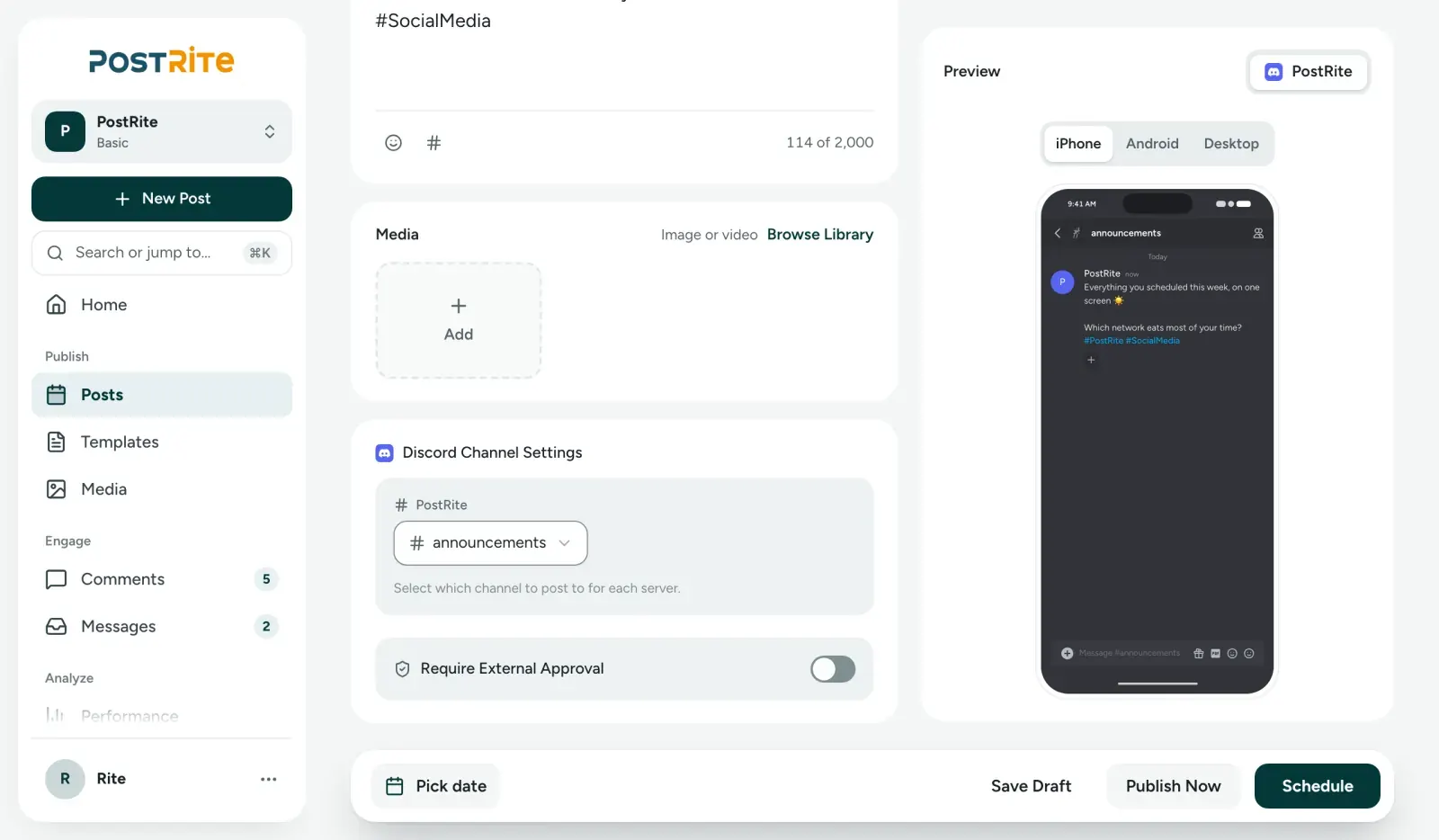
In the editor, you choose which channel the bot posts to and preview the message before scheduling.
When a message fails, PostRite shows the reason on the post, such as a webhook that no longer exists or missing permission in the channel. If the problem is Discord's rate limit, it retries automatically.
That makes a difference in a campaign. The launch goes out on Instagram, LinkedIn and Discord from the same post, with different copy for each network. You don't have to copy and paste in three places or remember to open Discord at the right time. The guide on how to cross-post on social media shows how to adapt the same content without repeating text.
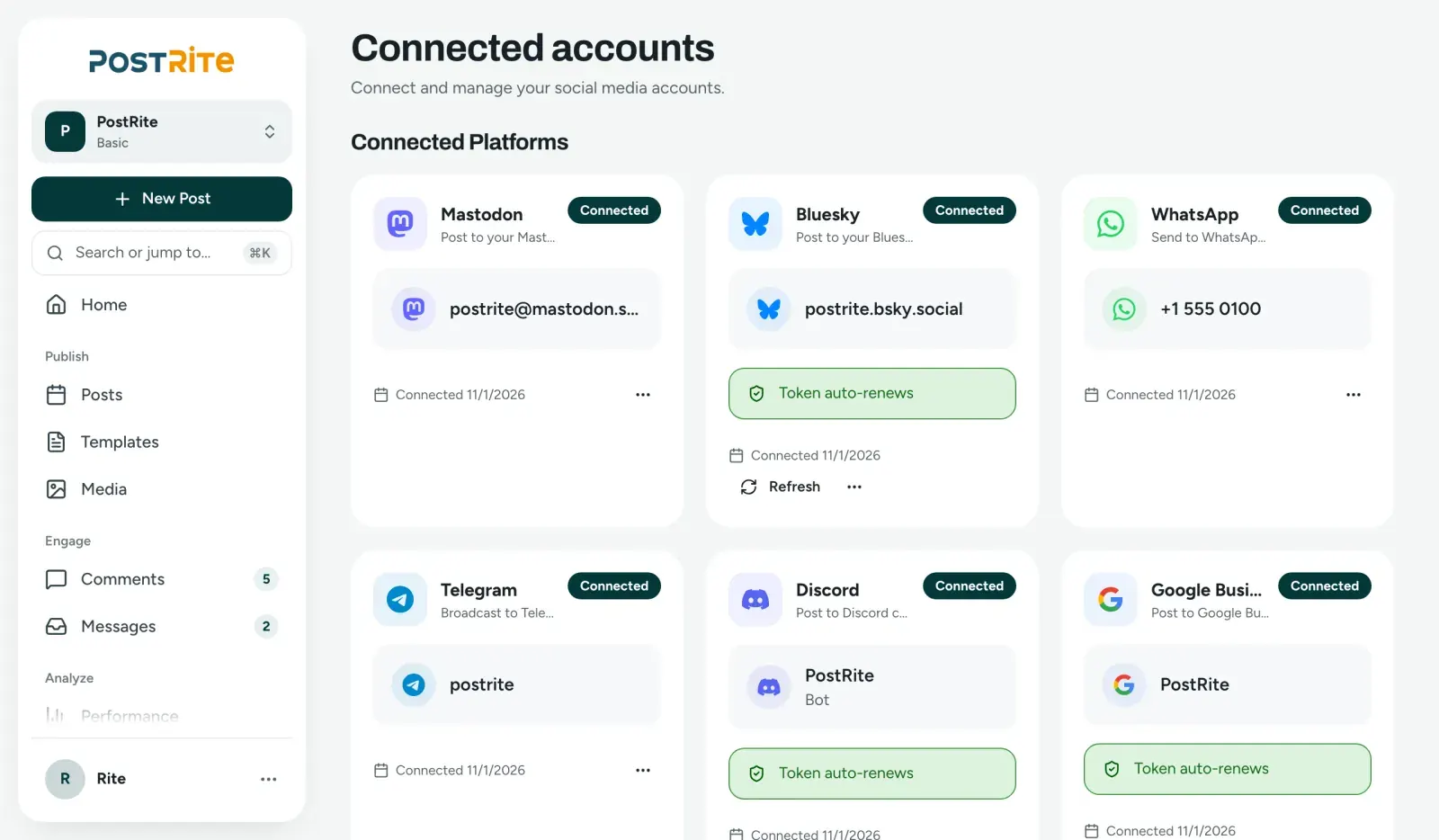
Discord shows up in Connected accounts next to the brand's other networks.
When an announcement needs someone's sign-off, like a client or the community manager, the post can go through external approval before it goes live. The approver gets a link and doesn't need a PostRite account.
PostRite publishes to 12+ networks. Plans cost US$ 4.99, US$ 9.99 or US$ 24.99 a month, with 3, 6 or 12 connected accounts and unlimited team members. Every feature is on every plan, and the 14-day trial doesn't ask for a card. The full connection walkthrough is in the Discord documentation.
Checklist before scheduling the week on Discord
- I chose between a webhook (one fixed channel) and the bot (several channels on the same server).
- The webhook URL is stored only in the tool, not in shared documents.
- The bot has View Channel and Send Messages in every channel used this week.
- Every message fits in 2,000 characters.
- The copy was adapted to Discord's tone, not pasted from Instagram.
- @everyone is saved for the most important announcement.
- Whoever runs the server knows there are scheduled announcements.
- The community's fixed times are on the calendar.
Frequently asked questions
Do I need to know how to code to use a webhook or bot on Discord?
No. The webhook is created in the channel settings and you only copy a URL. The bot is added with a button, and you approve access on a Discord screen. Neither one requires code.
Which is better for a brand, a webhook or a bot?
For a single announcements channel, the webhook is faster. If you post in several channels on the same server, the bot saves you from creating one connection per channel and lets you pick the destination for each post. With different clients, each server becomes its own connection.
Can you schedule videos on Discord?
Yes. Each message accepts one video up to 10 MB, which works well for behind-the-scenes clips and teasers. For a full livestream, use a short excerpt or share the recording link.
Can the bot post in announcement channels?
Yes. The announcements channel appears among the destinations you can choose, as long as the bot has View Channel and Send Messages permissions there.
Why doesn't my server show up in the list when I connect the bot?
Only servers where you're an Administrator or have Manage Server permission, and where the bot has already been added, show up. Add the bot first with the Add Bot to Server button, then authorize the account.
What happens if someone deletes the webhook?
The message isn't sent, and PostRite reports that the destination no longer exists. Create a new webhook in the channel and update the connection with the new URL.
Does PostRite show metrics for Discord messages?
No. Discord doesn't expose per-post metrics in this integration. To follow how the community responds, watch the server itself: reactions, replies and event turnout.
An active community doesn't depend on someone being online at the exact minute of an announcement. It depends on a routine the team can keep up. If you want Discord announcements ready alongside the rest of your calendar, try PostRite free for 14 days, no card required, and schedule next week's announcements for your server.