
Approval Workflow
Require external approval before scheduled posts are published. Use it for client sign-off, manager review, or compliance checks. The approver doesn't need a PostRite account.
How It Works
The approval workflow adds a review step between scheduling and publishing. When it is enabled, scheduled posts wait for an external person to approve them before they go live.
Create post
Enable approval & enter reviewer email
Pending
Post enters Pending Approval status
Email sent
Reviewer receives approval request
Reviewed
Approve, request changes, or reject
Scheduled
If approved, post is scheduled
Enabling Approval
- Create or edit a post as usual
- Turn on Require External Approval in the post editor
- Enter up to 5 approver email addresses. Approvers can be anyone (a client, manager or colleague) and don't need a PostRite account. Every approver receives their own review link, and any one of them can approve or reject. The first response decides. If your organization has a default approver email configured (Settings → General), it is filled in automatically
- Set your desired schedule date and time
- Click Schedule Post
The post is saved with Pending Approval status instead of going directly to Scheduled. The scheduled time must be more than an hour in the future, because approval links expire one hour before publishing and a closer time would leave no time to review. If you turn the approval toggle off on a pending post, the post is scheduled directly and any open review links stop working.
Note: The approval toggle is optional. If you don't turn it on, posts are scheduled immediately as usual. With approval on, Publish now is off: the post goes out once approved, so schedule a time.
Sending a Batch for Approval
Instead of enabling approval on posts one at a time, you can send several scheduled posts for review as a single batch. This is useful when a client or manager needs to sign off on a whole week or campaign at once.
- On the List tab of Posts, tick the scheduled posts you want to group (up to 20). The checkbox is next to each post that can go in a batch
- Click Request approval, enter one or more approver emails, and send
Every approver receives one link that lists all the posts. They can approve, request changes, or reject each post individually, or use Approve all remaining to approve the whole set in one click. You receive a single summary once the batch is fully reviewed, not one email per post. Only posts scheduled more than an hour in the future can be added to a batch.
The Approver Experience
The person you choose as approver receives an email with:
- A summary of the post content
- Which platforms it will be published to
- The scheduled date and time
- A preview of attached media (images/videos)
- Your organization name and who created the post
The email contains a secure link that opens a review page. This PostRite-branded page adapts to the approver's browser language (English, Spanish, Portuguese, French, German, or Greek) and shows:
- The full post content, hashtags, and media gallery
- Per-network previews: the post as it will appear on each connected platform (Instagram feed/Reel/Story, Facebook, LinkedIn, TikTok, YouTube, and so on), with phone and desktop mockups
- The scheduled date and time, including the timezone it refers to
From there, the approver can:
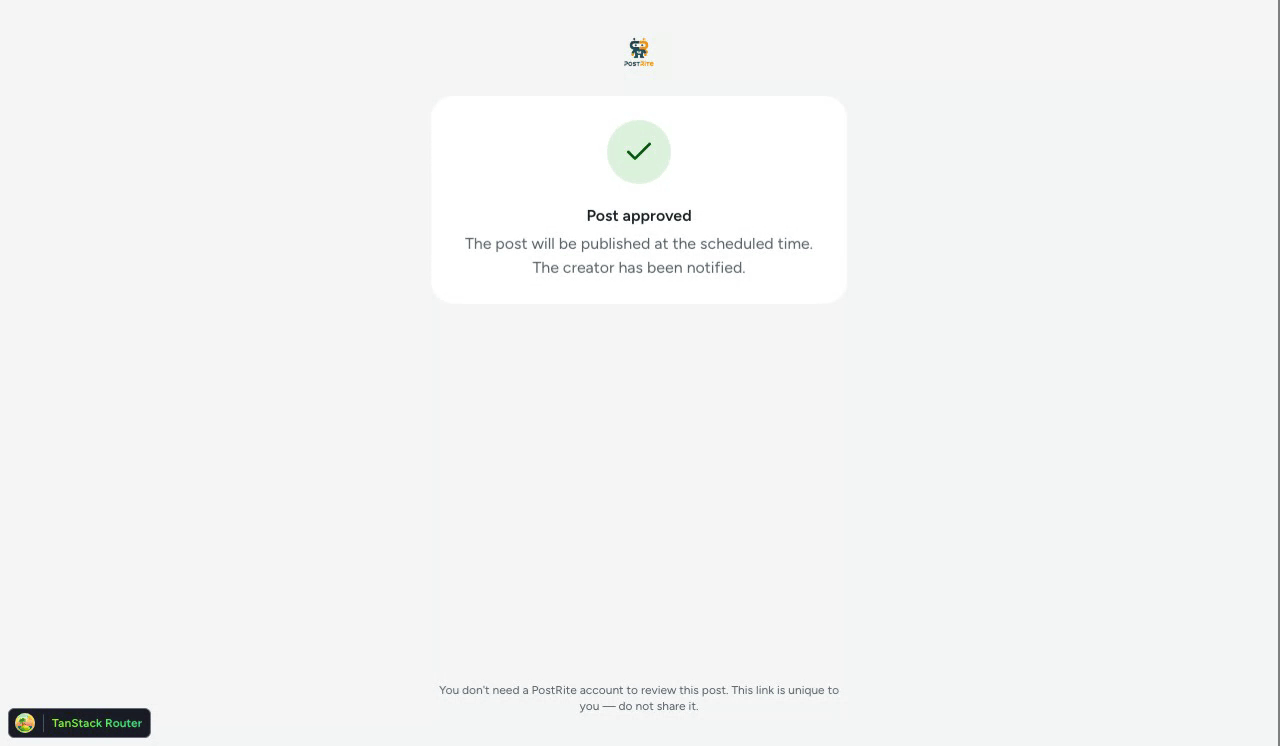
- Approve: the post moves to Scheduled status and publishes at the planned time
- Request changes: the post goes back to the creator with a note describing what should change. The creator edits and resubmits it on the same approval timeline
- Reject: the post moves to Rejected status, with an optional note explaining why
Post Statuses
When you use the approval workflow, your post goes through these statuses:
| Status | Meaning | What happens next |
|---|---|---|
| Pending Approval | Waiting for the approver to review | Approval email has been sent |
| Scheduled | Approved, will publish at the planned time | Automatic publishing |
| Rejected | Approver declined the post | You can edit and resubmit for approval |
| Changes requested | Approver asked for edits (with a note) | Edit the post and resubmit it. The approval timeline continues |
After a Rejection
If your post is rejected, you receive an email notification with the approver's feedback (if they wrote a note). You can then:
- Open the rejected post
- Review the rejection note
- Click "Edit" and change the content, media, or platforms as needed
- Click Resend for Approval to send a new approval request
Each resubmission generates a new approval link, and previous links stop working automatically.
Approval History
Every step of the approval workflow is recorded and shown as a timeline in the post detail view: when the request was sent, each time it was resent, and when it was approved, rejected (including the rejection note), or expired. This gives you a complete record of who reviewed what and when.
Token Expiration
Approval links expire automatically for security:
- Links expire 72 hours after being sent by default, or one hour before the scheduled publish time, whichever comes first. Each organization can set the lifetime from 24 to 168 hours in Settings → General
- When a pending link is about to expire (about 24 hours before), the approver automatically receives a reminder email with the same link. While the organization's subscription is restricted, reminders are not sent
- If the link expires with no response, the post is marked as Rejected with its approval state shown as Expired, and it does not publish
- You are notified by email whenever an approval request expires. A batch that expires sends one summary instead of one email per post
- You can resend the approval email at any time, even after the link expired, and a new link replaces the old one. The post detail also shows when the current link expires
Notifications
Both the post creator and the approver receive email notifications at key moments:
| Event | Creator notified | Approver notified |
|---|---|---|
| Post submitted for approval | — | Email with review link |
| Post approved | Email confirmation | Confirmation on review page |
| Post rejected | Email with rejection note | Confirmation on review page |
| Changes requested | Email with the approver's note | Confirmation on review page |
| Approval link about to expire | — | Reminder email (same link) |
| Approval expired | Email + push notification | — |
Security
The approval workflow includes these security measures:
- Private links: each approval link is unique and cannot be guessed, so only the person you emailed can open the review page.
- One-time decision: once the post is approved or rejected, every approver's link stops accepting actions and shows the outcome instead. With multiple approvers, the first response decides.
- Auto-expiration: links expire after your organization's configured lifetime (72 hours by default) or before the scheduled time, so old requests don't stay open. Media preview links have the same maximum lifetime.
- No account required: approvers don't need to create an account or log in to review a post.
- Content privacy: the review page shows only the post content and media previews, and nothing else from your workspace.
Use Cases
- Client approval: social media agencies can send posts to clients for sign-off before publishing
- Manager review: team members can send posts to managers for approval
- Compliance: regulated industries can require legal or compliance review before posting
- Brand consistency: make sure all content meets brand guidelines before it goes live
Tip: The approval workflow works well with templates. Create approved templates for recurring content, and only require approval for new or one-off posts.
Frequently Asked Questions
Can I approve my own posts?
Yes. You can enter your own email as the approver. You receive the approval email and can approve from there. This is useful if you want to review each post before it publishes.
Can I change the approvers after submitting?
Yes. Open the post, change the approver emails, and click Resend Approval. The previous links stop working and new ones are sent to the new list.
Can several people review the same post?
Yes. Add up to 5 approver emails. Each approver receives their own private link, and the first response decides. As soon as one approver approves or rejects, the other links show the outcome and no longer accept actions.
What if the approver never responds?
The approver gets an automatic reminder before the link expires. If it still expires, the post is marked as Rejected with its approval state shown as Expired. It does not publish, and you receive an expiration notification by email and push. You can then click Resend Approval on the post to send a new link, edit the post and resubmit it, or remove the approval requirement.
Does the approver see my media files?
Yes. The review page shows image and video previews, including accurate previews of the post on each platform, so the approver can see the complete post. Media is served through secure, time-limited links that expire with the approval request.
Is approval required for all posts?
No. Approval is optional and set per post. Turn it on only when you need external review. Posts without approval are scheduled immediately as usual.