
Writing Posts
Learn how to create engaging content that works across multiple platforms.
The Post Editor
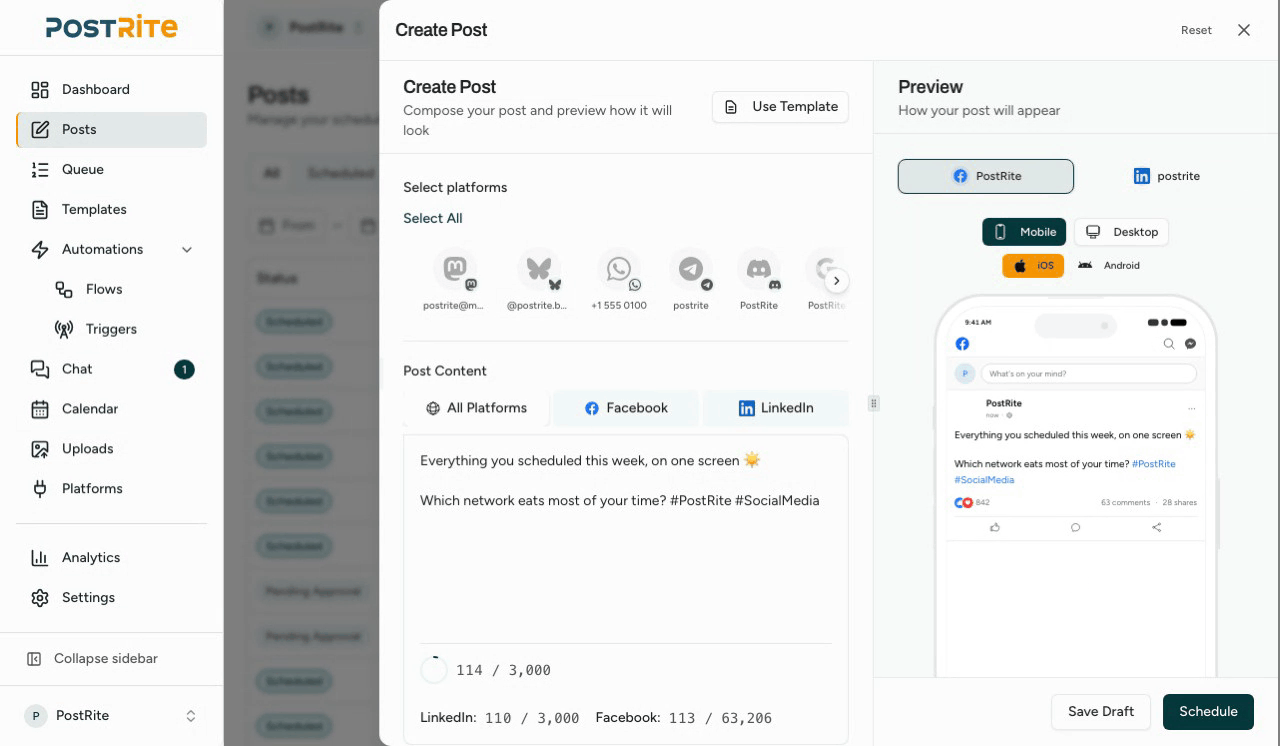
PostRite's post editor is designed to help you write content once and publish it across multiple platforms. Here's what you need to know: If there is only one account you can post to, it's already selected when you open a new post, and as soon as a platform is selected the editor lists what it still requires (Instagram, for example, needs at least one image or video) — before you click Publish Now or Schedule.
Character Limits
Different platforms have different character limits:
| Platform | Character Limit |
|---|---|
| Twitter/X | 280 (25,000 for Premium) |
| 3,000 | |
| Instagram (caption) | 2,200 |
| 63,206 | |
| Threads | 500 |
| TikTok (video description) | 2,200 |
| TikTok (photo carousel: title / description) | 90 / 4,000 |
| 500 | |
| YouTube (description) | 5,000 |
The editor shows you a character count and warns you when you exceed any platform's limit.
Writing for Multiple Platforms
When writing for multiple platforms at once, keep your content within the shortest character limit (usually Twitter at 280 characters). If you need longer content, consider creating platform-specific variations.
Adding Media
You can add images and videos to your posts in several ways:
- Upload - Click the upload area in the post editor to select files
- Drag and drop - Drag files directly into the editor
- Media Library - Click Browse Library to pick from previously uploaded media
Media Requirements
- Supported image formats: JPEG, PNG, GIF, WebP
- Supported video formats: MP4, MOV, WebM
- Maximum image size: 10 MB per file
- Maximum video size: limited by your plan's available storage (each platform may enforce its own limit)
- Maximum media per post: up to 35 files (varies by platform)
Per-Platform Content
Need to write different content for different platforms? PostRite lets you customize the text and media per platform within the same post. Use the content tabs in the editor to override the global content for specific platforms.
Templates
Save your post as a reusable template for future use. Click Save as Template to create a template with your content and media. You can also start a new post from a template using the template selector. See the Templates guide for more.
Post Previews
As you write, the preview panel shows how your post will look on each selected platform. Use the device selector to toggle between mobile and desktop views.
Previews are built to match the published post, not just approximate it:
- Your real account: the connected account's name, avatar and — where the platform actually has one — its @handle. Platforms that don't expose a handle simply don't show one.
- Multiple images: rendered as the collage each feed builds (up to four tiles on X, Bluesky, Mastodon and Threads; a 1-big-plus-2 collage on Facebook and LinkedIn; a swipeable carousel on Instagram). If you attach more images than a platform accepts, the preview flags it.
- Hashtags, mentions and links are highlighted the way each platform highlights them — including where they stay plain text, such as URLs in an Instagram feed caption.
- Link cards: a post with a URL and no image shows the card the platform will unfurl. The card image comes from the destination page when the post goes out.
- "See more" cutoffs appear at each platform's real fold, and the character counter measures the way that platform counts — an X link counts as 23 characters, emoji count as one.
- Scheduled time: a scheduled post previews with its publish date, in the platform's own date format.
Preview chrome follows your interface language, so a preview in Portuguese shows the app in Portuguese. Engagement numbers in the preview are illustrative placeholders — a new post starts at zero.
Saving Drafts
Posts are automatically saved as drafts as you type. You can also manually save a draft by clicking Save Draft or using Cmd+S (Mac) or Ctrl+S (Windows).
Drafts save your work in progress even if there are still platform-specific warnings to fix before publishing. Those warnings stay visible in the editor so you can resolve them when you are ready to schedule or publish.
Access your drafts anytime from the Posts page by filtering by "Drafts" status.
Hashtags and Mentions
Hashtags and mentions work differently across platforms:
- Twitter/X: Full hashtag and @mention support
- LinkedIn: Hashtags and @mentions for users/pages
- Instagram: Hashtags (up to 30) and @mentions
- Facebook: Hashtags and @mentions for pages
- Threads: @mentions only (no hashtags)
- TikTok: Hashtags and @mentions
- YouTube: Hashtags in title/description
Links
When you include a URL in your post, PostRite will automatically detect it. Different platforms handle links differently:
- Twitter/X: Links count as 23 characters regardless of length
- LinkedIn: Full link preview with image
- Facebook: Rich link preview with thumbnail
- Instagram: Links only work in bio or stories (not in feed posts)
- Pinterest: Each pin can have a destination URL
Tags
Add tags to your posts to organize and categorize them. Tags are internal to PostRite and won't appear on the published post. Use them to group related content for easier searching and filtering.
First Comment
Three networks can publish a first comment for you, right after the post goes out. It is the usual place for hashtags or a link, so the post copy itself stays clean:
- Facebook: posted on your Page post or Reel, up to 8,000 characters (not available on Stories)
- Instagram: posted on your post or Reel, up to 2,200 characters (not available on Stories)
- X: published as a reply to your tweet, up to 280 characters
The other networks do not offer it — their comment APIs need permissions the connection does not grant. If a network refuses the first comment, the post still goes out and is marked with a warning giving the network's reason; you can then post the comment yourself in the network's app.
Instagram Post Options
When Instagram is selected, the editor shows additional options:
- Content Type: Choose between Feed Post, Reel, or Story
- First Comment: Automatically post a comment (e.g. hashtags) right after publishing
- Trial Reel: Show your Reel to non-followers first to test performance, then choose what ends the trial: you share it with your followers from the Instagram app, or Instagram does it on its own if the Reel performs. Instagram only runs trials on eligible accounts (Reels only)
- Cover: Pick what people see before the Reel plays — a moment in the video, or a different picture from an upload or your media library (Reels only)
- Music: Attach a track from Instagram's audio catalog, with its own volume against the video's (Reels only, and only on an account connected via Facebook)
- Collaborators: Invite up to three other accounts to share the post and its reach (not on Stories)
- Answering comments is a flow, not a post option — set it up under Automations and point it at any post on the account
YouTube Video Options
When YouTube is selected, the editor shows additional options:
- Video Title: A dedicated title (falls back to your post content)
- Privacy: Public, unlisted, or private
- Category: The YouTube video category
- Tags: Keywords that help viewers find the video (500 characters combined)
- YouTube Short: Publish the video as a Short
- Made for Kids: COPPA audience declaration
- Custom Thumbnail: Optionally pick a thumbnail — upload an image or choose one from your media library (not available for Shorts; requires a phone-verified channel)
Tips for Great Posts
- Keep it concise: Shorter posts often perform better
- Add visuals: Posts with images get more engagement
- Use line breaks: Make your content scannable
- Include a CTA: Tell people what you want them to do
- Be authentic: Write in your natural voice
Archiving & Restoring Posts
Posts you no longer need can be archived to keep your workspace tidy without permanently deleting them.
- Open a post and select Archive from the actions menu
- Archived posts are hidden from the main list but can be found using the status filter
- To bring a post back, open it from the archive and select Restore
- Restored posts return to Draft status so you can review and reschedule them