
Connecting Social Accounts
Connect your social media accounts to start scheduling posts. PostRite supports multiple accounts per platform.
How to Connect an Account
Only Owners and Admins can connect or disconnect platform accounts. Editors and Viewers can view and post to already connected platforms but cannot modify connections.
- Go to Connected accounts from the sidebar
- Find the platform you want to connect
- Click the Connect button on the platform card
- Follow the connection flow (varies by platform type)
When someone else has the password
The person who can sign in to the account is often not someone with a PostRite login. It may be a client, a colleague, or whoever set the account up. Instead of asking them for the password, send them a link.
- On the Connected accounts page, use Ask someone else. It is in the ⋯ menu on a connected account's card, to have the account reconnected, and next to a platform, to have it connected for the first time. Instagram accepts two ways to sign in, so you choose which one the link uses
- Enter their email and, optionally, a short message of your own. The message is shown on the page they open and helps them recognize the email as one they were told to expect
- They open the link and sign in to the platform itself, and that is all. They never create a PostRite account and never see your workspace
- The link works for 48 hours and stops working as soon as the account is connected. You can resend or revoke it from the same page
A reconnect link is tied to one specific account. If they sign in with a different one, such as a personal profile, nothing is connected and the page explains what happened.
Connection Types
PostRite uses different connection methods depending on the platform:
OAuth Platforms
These platforms open a popup window where you log in and authorize PostRite:
- Facebook (Facebook Pages via Meta OAuth)
- Instagram (Business/Creator accounts, by Instagram Login or via Facebook)
- Threads (via Threads OAuth)
- WhatsApp (WhatsApp Business, via Meta's sign-up window)
- TikTok
- YouTube
- Google Business
- X (through your own X app, created on console.x.com)
- Discord (Bot integration via Discord OAuth)
OAuth Connection Flow
A popup window opens. Log in to the platform and authorize PostRite, and the popup closes automatically. Your account appears in the list.
API Credentials (BYOAPI)
These platforms require you to provide your own API credentials through a form:
- Telegram: bot token and channel ID
- Discord: webhook URL (alternative to the OAuth bot)
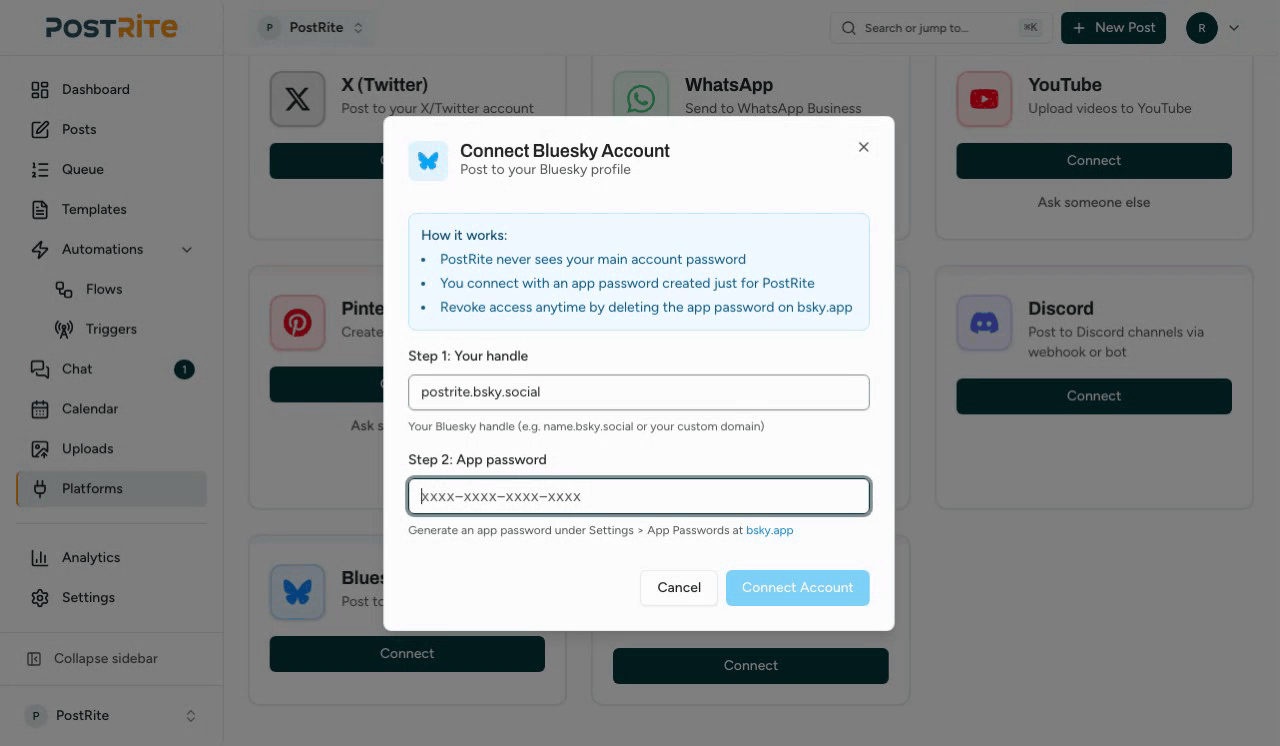
- Bluesky: handle and app password
- Mastodon: instance URL and application access token
Platform Details
Facebook Pages
- Connects via OAuth popup
- Select which Facebook Pages to manage after authorization
- Requires admin access to the Facebook Page
Instagram Business
- Two ways to connect: Instagram Login or Via Facebook. PostRite asks which one before opening the popup
- Requires an Instagram Business or Creator account either way; Via Facebook also needs a Facebook Page linked to it
- Auto-publish posts, reels, stories, and carousels
The two methods give access to slightly different features. For example, music from Instagram's catalog on a Reel is only available Via Facebook. An account cannot use both at once. The Instagram guide compares them.
Threads
- Connects via Threads OAuth popup
- Requires a Threads profile linked to an Instagram Business or Creator account
- Post text content up to 500 characters, images, and videos
Twitter / X (your own X app)
X connects through an app you create on console.x.com, so its API usage is billed to your developer account. From that app you need:
- Client ID
- Client Secret
- The callback URL PostRite shows, registered in the app as Callback URI
X developer account required
Create the app at console.x.com, turn on OAuth 2.0 with the type Web App, Automated App or Bot, and follow the steps on the X page of these docs.
- Connects via OAuth popup
- Post to personal profile or company pages
- Company pages require admin access
TikTok
- Connects via OAuth popup
- Requires TikTok Business or Creator account
- Upload and schedule videos and photo carousels
YouTube
- Connects via Google OAuth popup
- Select which channel to manage
- Upload videos and Shorts
- Connects via OAuth popup
- Create and schedule pins
- Post to your boards
Google Business
- Connects via Google OAuth popup
- Post updates to your business listing
- Create offers and events
Discord (Bot or Webhook)
Discord offers two connection methods:
- Bot (OAuth): Authorize the PostRite bot on your server, then choose any text channel per post. Best for multi-channel/multi-server use.
- Webhook: Create a webhook in your Discord channel settings and paste the URL. Quick setup for posting to a single channel.
See the Discord integration guide for detailed setup instructions.
Telegram (Bot)
You need to create a Telegram bot:
- Message @BotFather on Telegram to create a bot
- Copy the bot token
- Add the bot to your channel/group as admin
- Enter the bot token and chat ID in PostRite
Bluesky (App Password)
You need an app password from Bluesky:
- Generate one at bsky.app under Settings → App Passwords
- Enter your handle and the app password in PostRite
- Your main account password is never shared
- Revoke access anytime by deleting the app password
See the Bluesky integration guide for detailed setup instructions.
Mastodon (Application Token)
You need an application access token from your instance:
- On your instance, open Preferences → Development → New application
- Grant the write:statuses, write:media and read:accounts scopes
- Enter the instance URL and the access token in PostRite
- Revoke access anytime by deleting the application
See the Mastodon integration guide for detailed setup instructions.
WhatsApp Business API
- Connects through Meta's sign-up window, with no credentials to copy
- Pick an existing WhatsApp Business number or create one while connecting
- Meta bills you for messages directly; PostRite does not resell them
Managing Connected Accounts
View all your connected accounts on the Connected accounts page or in Settings → Platforms.
Disconnecting an Account
Click the menu icon (⋯) on any connected account and select Disconnect. This removes the account from PostRite but doesn't affect your social media account.
Scheduled posts that targeted the account keep it listed, with a Disconnected badge on the post's platform cards. If the account is still disconnected at publish time, that platform fails while the others publish normally. When you open such a post in the editor, the disconnected account is removed from the selection (with a warning) so you can pick a replacement. Reconnecting the same account restores the existing connection, so scheduled posts that still list it publish normally again.
Disconnecting an Instagram account, a Facebook Page or a WhatsApp number also immediately deletes its Chat conversations and any comments imported for it into Comments. The same happens if you remove PostRite's access in Meta. After reconnecting an Instagram account or a Facebook Page, the last 30 days of comments are imported again the next time someone opens Comments; chat history is not recoverable.
Token Refresh
OAuth tokens may expire over time. To refresh a token, click Refresh on the account's card on the Connected accounts page, or open the menu (⋯) in Settings → Platforms and click "Refresh Token". When an account needs attention, the card shows "Reconnect" instead. Refreshing cannot help if you revoked PostRite's access in the platform's own settings or changed your password there. In that case the authorization itself is gone, and because refreshing reuses it, only reconnecting restores the account. When a connection is renewing through a saved credential instead of the normal way, the card says so instead of showing the green badge. The connection still works, but you should reconnect it before it stops.
Troubleshooting
OAuth Popup Blocked
If the popup doesn't open:
- Allow popups for postrite.app in your browser
- Disable popup blockers temporarily
- Try a different browser
Account Shows "Reconnect needed"
This happens when the authorization expired or was revoked on the platform's side, for example after a password change, a security reset, or removing PostRite from the app settings on that platform. Reconnect the account. Refreshing the token cannot fix a revoked authorization, because it reuses the same one. The account stays on the page with a Reconnect button instead of disappearing. On the networks that allow it, the email PostRite sends includes a link that takes you directly to the platform's authorization screen. For accounts you connected with your own credential (Bluesky, Telegram, X, Mastodon, Discord), the email explains what to do instead, because no link can replace a password that only you can create. When nothing renews an account automatically, PostRite now emails you before it lapses instead of after.
Platform Limit Reached
Each plan has a limit on the number of connected social accounts. Check your current limits on the billing page or in Settings → Billing. Upgrade your plan to connect more accounts.