
How to Schedule Social Media Posts with ChatGPT (and What It Still Can't Do on Its Own)
Quick answer: ChatGPT writes captions, but it doesn't publish or schedule anything on its own. To schedule posts without leaving the chat, it has to be connected to a social media management platform that offers an MCP server. PostRite has a plugin in ChatGPT: you install it from the plugin page and authorize it on a PostRite sign-in screen. You can also add it by URL through Developer mode, which OpenAI offers on eligible paid plans. Once it's connected, you ask "schedule these captions at my best times" and the posts land in the tool's calendar, with the permissions you approved.
Plenty of people already use ChatGPT to get ideas off the ground. It suggests topics, drafts three versions of a caption and adjusts the tone for LinkedIn. The trouble starts afterwards: copy each text, open the scheduling tool, paste, pick the network, set the date and do it all again for the next post.
That back-and-forth is what the connection removes. But it comes with rules, permissions and a few precautions that hardly any tutorial explains. It's worth understanding each one before you hand your calendar to AI.
Can ChatGPT post to Instagram on its own?
No. On its own, ChatGPT has no access to your accounts. It doesn't log in to Instagram, doesn't open LinkedIn and doesn't know what's already scheduled for the week. Everything it produces stays in the conversation until someone takes it somewhere else.
So the real question isn't "can ChatGPT post?" but "what tool is it connected to?". The scheduling tool does the publishing, because it already has your accounts connected. ChatGPT becomes the way you give the instructions.
If your question started with Instagram, the article on the Instagram MCP server explains why you should be wary of any solution that asks for your account password.
What does ChatGPT need to schedule posts?
It needs a "cable" to the tool. That cable is MCP (Model Context Protocol), an open standard that lets AI assistants use external tools. The scheduling tool offers an MCP server with actions such as creating posts, scheduling them or listing accounts, and ChatGPT calls those actions when you ask.
In practice, the connection has three parts:
- A remote MCP server, hosted by the tool and reachable at a URL.
- Secure authorization, usually through OAuth. You sign in to the tool, choose what to allow and ChatGPT never sees your password.
- Clear permissions, so the AI only does what you approved.
If you'd like to go through the concept more slowly, the post What is MCP and WebMCP explains the difference between the two.
Plugin or Developer mode: which way should you connect?
The shortest route is PostRite's plugin in ChatGPT. You open the plugin page, install it and authorize. No URL to paste, no setting to hunt for.
The other route is adding PostRite by its MCP server URL in ChatGPT's Developer mode. Three things are worth knowing before you pick one:
- At a company, it may depend on someone else. On a Business or Enterprise workspace, an admin may have to allow the plugin first. The same goes for Developer mode.
- Developer mode isn't on every plan. OpenAI offers it on eligible paid plans. If you don't see the option, check your plan.
- Menus move around. OpenAI moves these settings from time to time. Its help article on Developer mode has the current path.
Either way, nobody has to code. And both routes end the same way: on a PostRite sign-in and consent screen where you decide what to allow.
How do you connect ChatGPT to PostRite, step by step?
The steps below follow the PostRite documentation and use the plugin. It takes a few minutes.
- Allow access in PostRite. AI assistant access is off by default in every organization. The owner turns on Remote MCP access under Settings → General → AI Assistants.
- Open the plugin page. Use the Connect to ChatGPT button on that same settings screen, or go straight to PostRite's plugin page in ChatGPT.
- Install the plugin. ChatGPT opens the PostRite sign-in and consent screen right away. On a Business or Enterprise workspace, an admin may have to allow the plugin first.
- Authorize in PostRite. Sign in, pick the organizations the assistant can work in, review the permissions and click Authorize. For ChatGPT, the screen shows "identified by chatgpt.com". An app PostRite can't verify is marked as not verified, so only authorize it if you started the connection yourself.
- Bring PostRite into the chat. In a chat, add PostRite to your request, as the examples on the plugin page show.
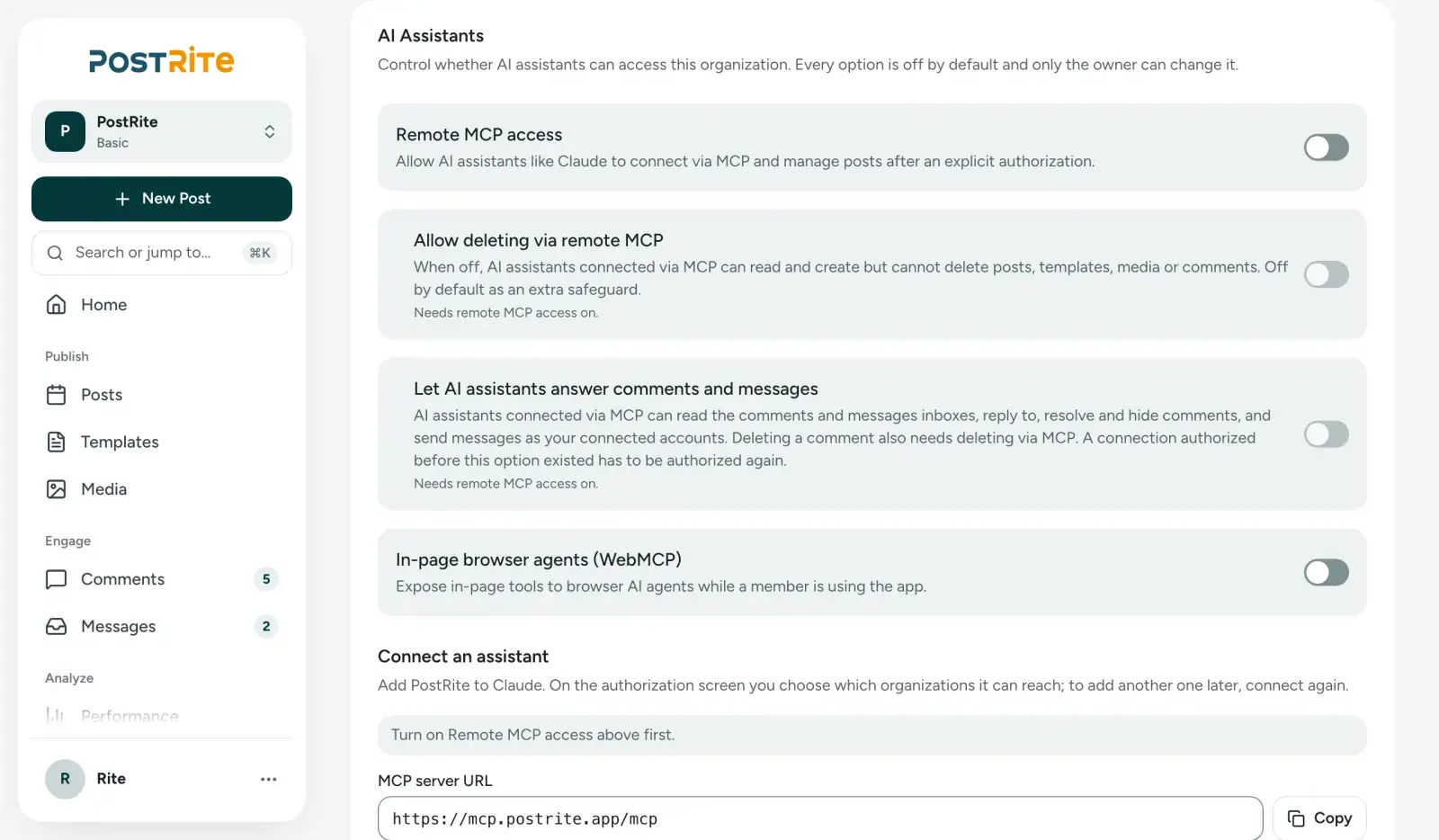
Prefer Developer mode? Turn it on in ChatGPT's settings, add an app with the MCP server URL, https://mcp.postrite.app/mcp, and choose OAuth as the authentication. After that, you get the same PostRite sign-in and consent screen.
A good first test is read-only: "List my connected accounts in PostRite and tell me if any of them need to be reconnected." If the answer is right, the connection works.
How do you turn one brief into different posts for each network?
This is where the connection starts to pay off. Instead of asking for a caption and copying it, you work with the whole brief inside the chat.
A routine that works well for social media managers and agencies:
- Paste the brief. Goal, audience, offer, tone and the client's networks.
- Ask for one text per network. The assistant can write a different text for each platform within the same post, instead of repeating the same caption everywhere.
- Ask for validation before saving. The assistant can check the post against every platform's rules before creating or scheduling it, in a dry run that saves nothing. Whatever breaks a network's rules shows up now, not on publishing day.
- Save it as a draft. The drafts it saves come back with warnings about what to fix before scheduling.
- Review, and only then schedule.
A request in that style:
"Using this brief, create a post for Instagram, LinkedIn and Threads, with a different text for each network. Validate it against each platform's rules before saving, save it as a draft and show me the warnings."
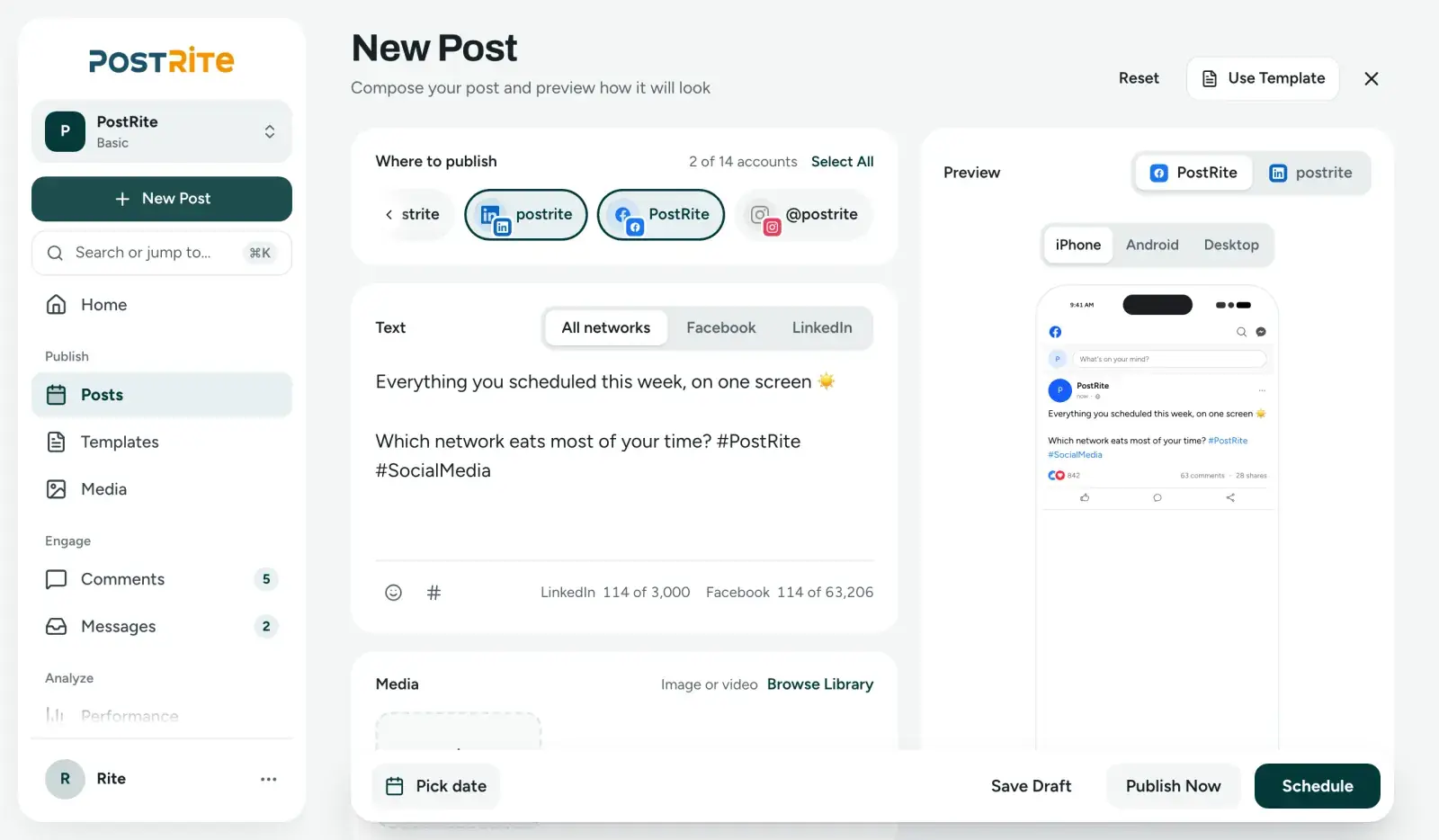
The PostRite editor shows the same logic on screen: one tab with the text for all networks and tabs to swap the content for specific platforms, with a preview of each one alongside.
Can you send the post to the client for approval before scheduling?
Yes, and it's one of the things that set a professional routine apart from "install it and you're done". Through MCP, the assistant can send a post for external approval, resend an approval request and read a post's approval history.
In PostRite, the approval workflow works like this:
- You enter up to 5 approver email addresses, and approvers don't need a PostRite account.
- Each approver gets their own link and sees the post as it will appear on each network.
- They can approve, request changes or reject. The first response decides.
- The post sits in Pending Approval and only moves to Scheduled after the yes.
- The scheduled time must be more than an hour in the future, because approval links expire one hour before publishing.
In practice, the request looks like this: "Schedule this post for Thursday at 6 p.m. and send it for approval to the client email in the brief." To set up the process from scratch, the guide to the social media approval workflow shows how to organize who approves what.
How do you schedule at your best times without guessing?
On its own, ChatGPT can only offer generic times. Once connected, it can look at your history. In PostRite, the assistant reads the best days and times from your last 12 months, for the whole organization, one platform or one connected account, and turns those times into concrete scheduling slots, skipping the ones that already have a post.
There's an honest condition here: insights come only from your own posts with collected metrics. A new account, or an account on a network where PostRite doesn't collect analytics, has no best times yet. In that case, the assistant tells you instead of making up a time.
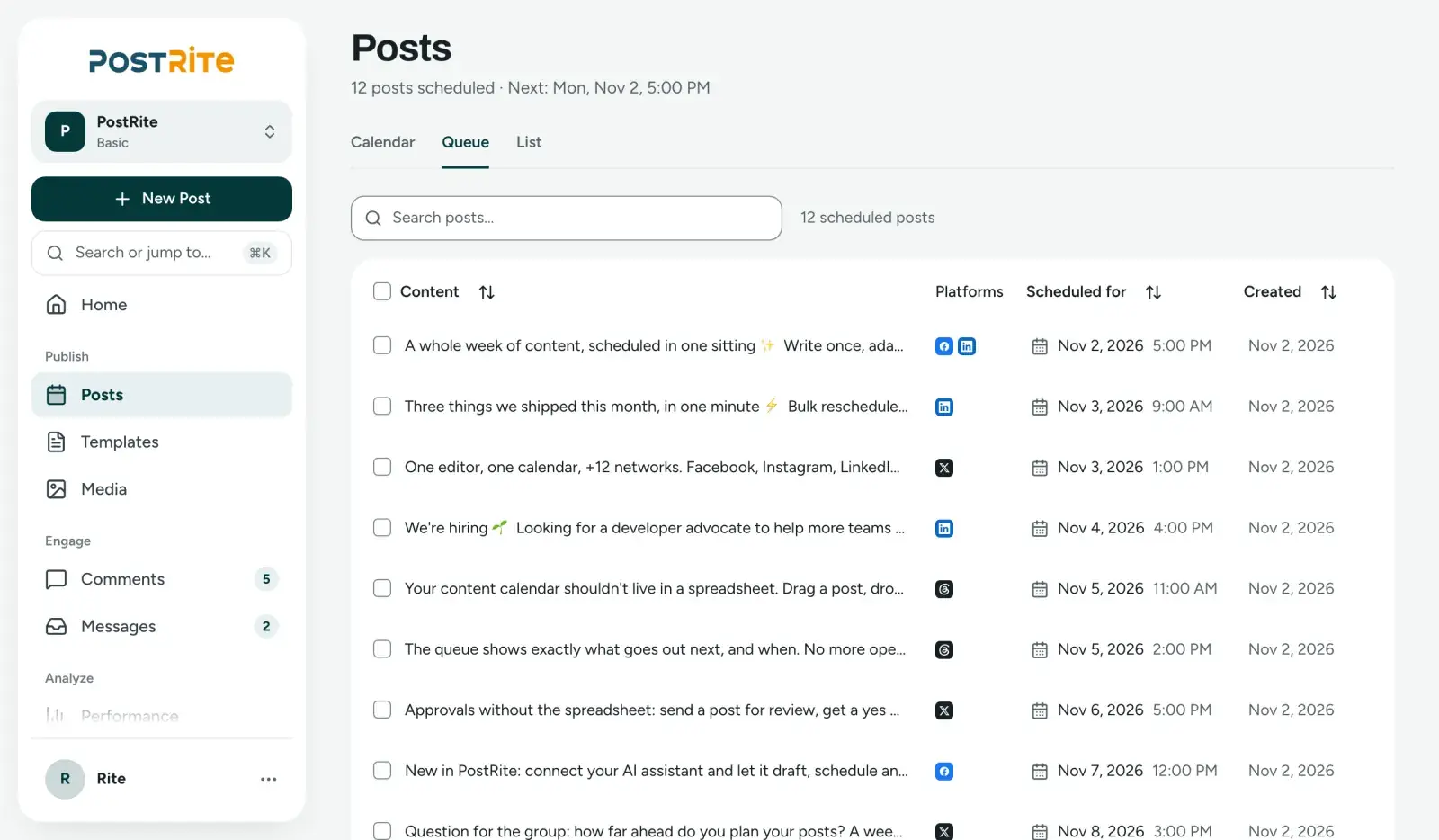
After scheduling, open the Queue and check. It shows your upcoming posts in chronological order, with the network and time of each one.
Which permissions should you grant (and which should stay off)?
Every request from the assistant uses exactly the same permissions your account has in that organization. It can never do more than you can. Even so, only allow what's needed.
| Setting in PostRite | What it does | Recommendation for scheduling posts |
|---|---|---|
| Remote MCP access | Lets the assistant connect | On (required) |
| Allow deleting via remote MCP | Lets the assistant delete posts, templates and media | Leave off |
| Let AI assistants answer comments and messages | Opens the comment and message inboxes to the AI | Leave off if the goal is only scheduling |
| Organizations on the consent screen | Defines where the assistant works | Tick only the ones it needs |
With deletion off, the assistant can read and create, but any attempt to delete is refused, even with write permission. For agencies, choosing organizations matters: you can open AI to one client and leave the others out.
If you change your mind, revoke access under Settings → Account → Connected AI assistants. Removing PostRite only inside ChatGPT doesn't guarantee that the authorization ends in PostRite. To end access, revoke it there.
Can ChatGPT keep scheduling on its own every day?
Two things are worth separating here. A scheduled post doesn't depend on ChatGPT: PostRite stores the post and publishes it automatically at the chosen time, whether the chat is open or not.
ChatGPT running a routine on its own, such as "every Monday, build and schedule the week", is something else. ChatGPT has scheduled tasks, but the PostRite documentation recommends checking that a task reaches PostRite before you rely on it. Until you've confirmed it, the safe route is to talk to ChatGPT when you plan the week and leave the publishing to the tool.
What should you do when the connection doesn't show up in ChatGPT?
The most common problems have a known cause:
- I can't install the plugin. On a Business or Enterprise workspace, an admin may have to allow it first. Ask them, then try again.
- I can't find Developer mode. It's offered on eligible paid plans, and OpenAI moves the menu from time to time. On a Business or Enterprise workspace, ask the admin to allow it.
- PostRite doesn't join the conversation. Add PostRite to your request, as the examples on the plugin page show.
- Your organization doesn't appear on the consent screen. Only organizations whose owner turned on Remote MCP access appear. Ask for it to be turned on and connect again.
- You see "MCP access is disabled for this organization". The owner turned off access after you connected. Connections stay paused until it's turned back on.
- The assistant says an account needs reconnecting. The authorization expired or was revoked on the social network. Reconnect the account in PostRite.
- A post fails because an option is missing. Pinterest needs a board, a Discord bot needs a channel, TikTok needs a privacy level and WhatsApp needs a recipient. Ask the assistant to look these options up first.
- The assistant can't delete anything. That's the default: Allow deleting via remote MCP is off.
How does PostRite fit into this routine?
PostRite is a social media management platform with its own MCP server. It publishes to the major social networks, including Instagram, Facebook, LinkedIn, TikTok, YouTube, Threads, X and Pinterest, and lets ChatGPT, Claude and other compatible assistants use that work with the permissions you set.
With ChatGPT connected, you can create and schedule posts with text per network, validate before saving, send for external approval, look up your best times and list your connected accounts. On X, the connection uses your own X developer API credentials.
Plans cost US$ 4.99 (Basic, 3 accounts), US$ 9.99 (Standard, 6 accounts) and US$ 24.99 (Advanced, 12 accounts) per month, with unlimited team members. Every new account starts with a 14-day free trial, no card required, with full access to all features. The details are on the pricing page, the integration overview is on the PostRite + ChatGPT page and the full setup is in the Connect AI Assistants doc.
If you also use Claude, the guide How to use Claude to manage social media covers content prompts and how the connection works there.
Checklist before you let ChatGPT schedule
- [ ] PostRite's plugin is installed in ChatGPT (on Business or Enterprise, allowed by the admin).
- [ ] The owner turned on Remote MCP access in the tool.
- [ ] Only the organizations that are needed were ticked on the consent screen.
- [ ] The consent screen showed "identified by chatgpt.com".
- [ ] Deleting via MCP is off.
- [ ] The first test was read-only, such as listing the connected accounts.
- [ ] Posts go through validation and stay as drafts before scheduling.
- [ ] Client posts go out for approval more than an hour ahead.
- [ ] Someone checks the Queue after each scheduling session.
Frequently asked questions
Which plans does the connection work on?
For the plugin, the PostRite documentation mentions one condition: on a Business or Enterprise workspace, an admin may have to allow it first. Developer mode, the URL route, is something OpenAI offers on eligible paid plans. On the PostRite side, the ChatGPT integration is included in every plan, including the 14-day free trial.
Do I need to know how to code to connect ChatGPT?
No. With the plugin, you install it from PostRite's page in ChatGPT and authorize it on a sign-in screen. With Developer mode, you paste a URL and choose OAuth. Neither route involves writing code.
Do I need to be the organization owner in PostRite?
To turn on Remote MCP access, yes: only the owner can. After that, whoever connects ChatGPT signs in with their own PostRite account, and the assistant can never do more than that account can in that organization.
Does ChatGPT see my social media passwords?
No. The connection to PostRite uses OAuth 2.1, and the assistant never receives your password. It only gets the permissions you approve.
Can ChatGPT delete my posts?
Only if Allow deleting via remote MCP is on in PostRite. It's off by default, so any attempt to delete is refused.
Which networks can I schedule to through ChatGPT?
The same networks connected in PostRite. The assistant sets each network's options, such as Reel or Story on Instagram, the board on Pinterest and the privacy level on TikTok.
Does ChatGPT know the best time to post?
Connected to PostRite, it uses the best times from your last 12 months. Without enough data, it tells you instead of making up a time.
ChatGPT writes. The tool publishes.
ChatGPT is still great at what it already did: getting ideas off the ground and writing fast. The connection simply ends the copy and paste between the chat and the calendar, with client approval, validation and permissions along the way.
If you want to see this routine with your own accounts, PostRite offers a 14-day free trial, no credit card required. Connect ChatGPT, ask for your first week of posts and review everything before it goes live.